


License & Registration
BandiView License Policy
How to register BandiView
How to troubleshoot when I can’t register BandiView
How to troubleshoot "The product has been registered on too many devices."
BandiView Edition Comparison
Features & Technical Terms
BandiView shortcut keys
How to customize shortcuts
Command Line Parameters
Setting up an image editor
Thumbnail previews in File Explorer
Webtoon View Mode
How to group RAW and JPG files as a single image
Photo folder
ICC profile
How to configure BandiView's video output
How to export and import BandiView settings
Supported BandiView File Formats
How to view CLIP STUDIO PAINT files (.clip) with BandiView
How to view PSD files (.psd) with BandiView
How to view SVG files (.svg) with BandiView
How to view HEIC and HEIF files with BandiView
BandiView for HDR Images
BandiView HDR support
How to turn on HDR settings in Windows
When HDR images do not look like HDR
Sample files for HDR support
The Complete Guide to Ultra HDR Jpeg
BandiView Image Converter
Sharp YUV conversion for WebP images
Tips and Tricks
How to make BandiView auto-run a slideshow
Thumbnail previews in File Explorer
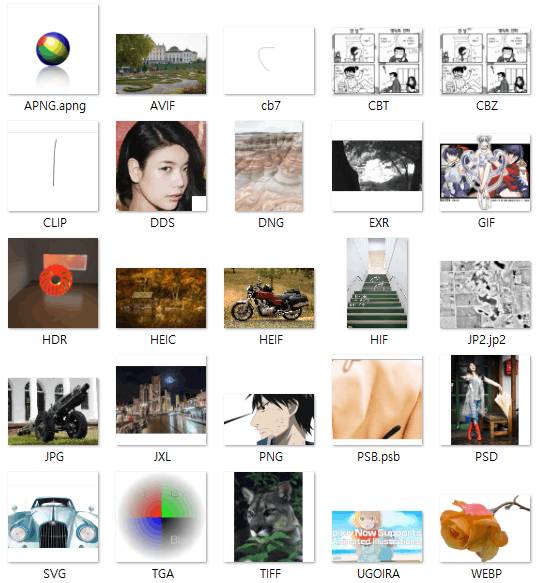
BandiView adds thumbnail previews for file types that Windows File Explorer cannot preview on its own. The table below lists the supported formats.
| File type | Extensions |
|---|---|
| Images and photos | APNG, AVIF, DDS, DNG, EXR, GIF, HDR, HEIC, HEIF, HIF, JP2, JPG, JXL, PNG, TGA, TIF, WebP |
| Artwork and vector images | CLIP, PSB, PSD, SVG |
| Comics and animation | CB7, CBR, CBT, CBZ, UGOIRA |
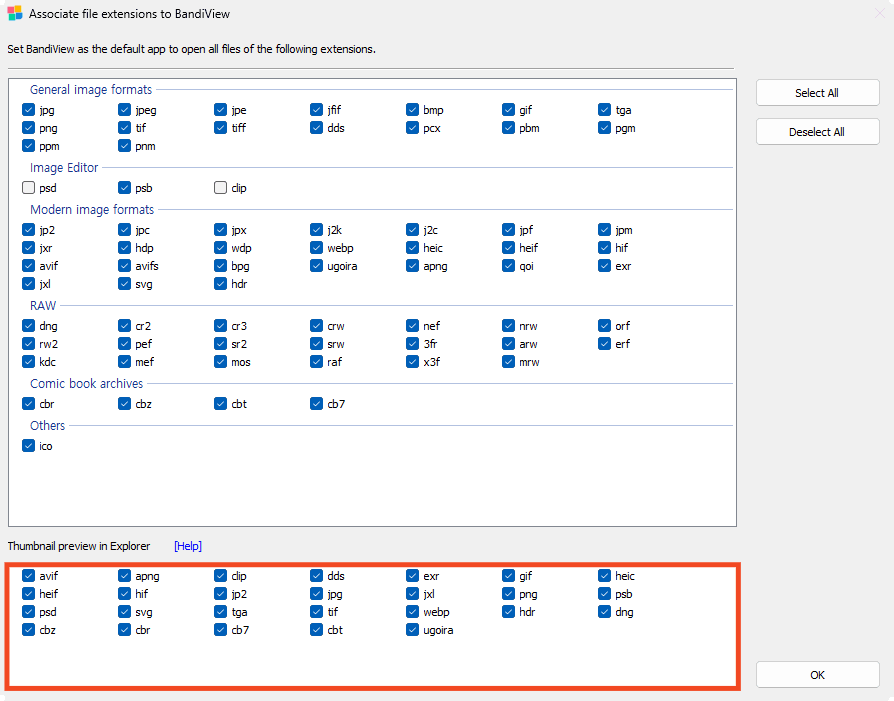
Choose thumbnail previews during initial setup
When you first install BandiView, all file types under "Thumbnail preview in Explorer" at the bottom of the setup window are selected. Clear any file types you don’t want BandiView to preview, then select "OK".
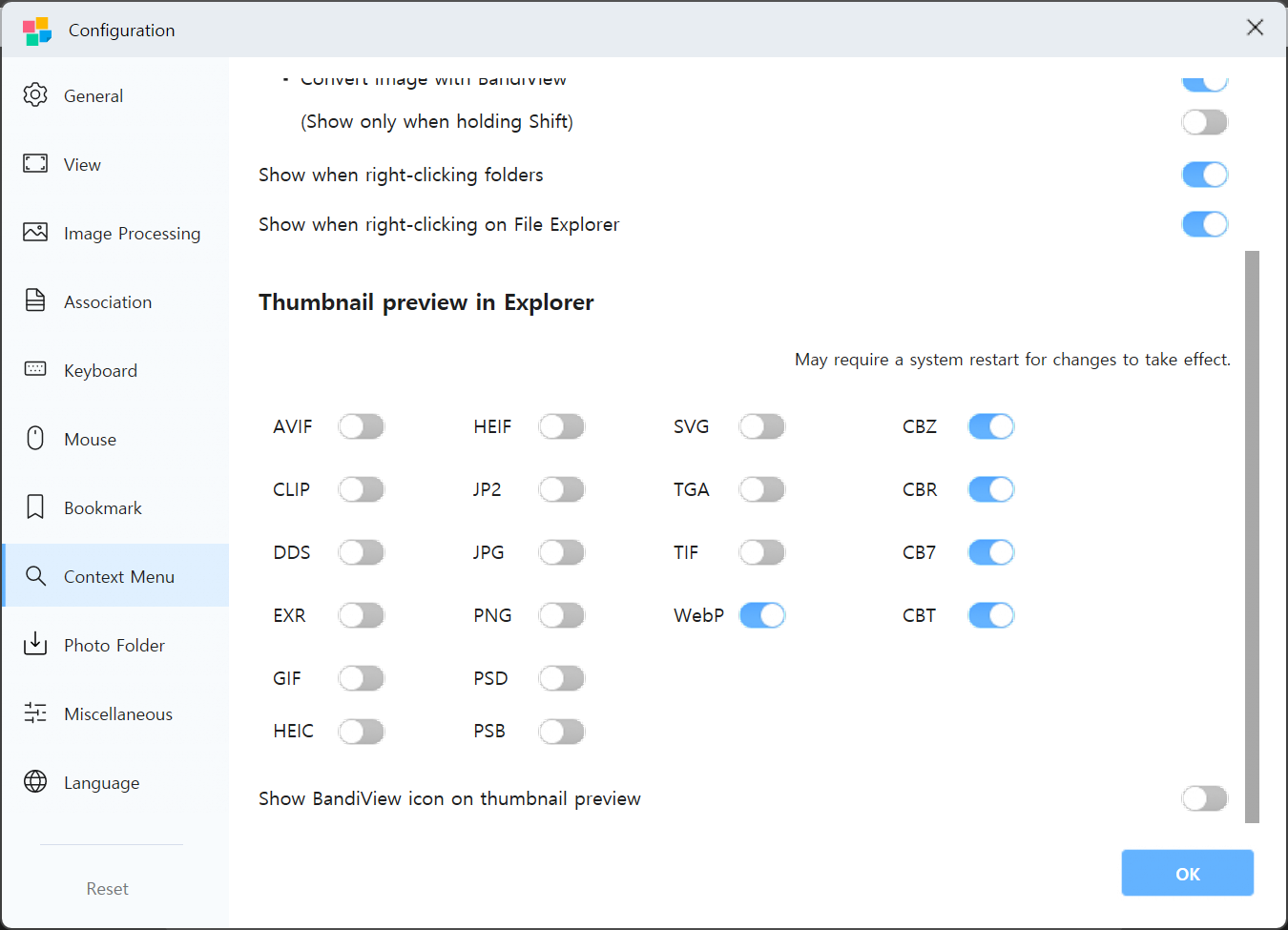
Change thumbnail previews after installation
Open "Configuration" (F5) in BandiView and select "Context Menu" on the left. Under "Thumbnail preview in Explorer", select a file type to turn previews on. Select it again to turn them off.
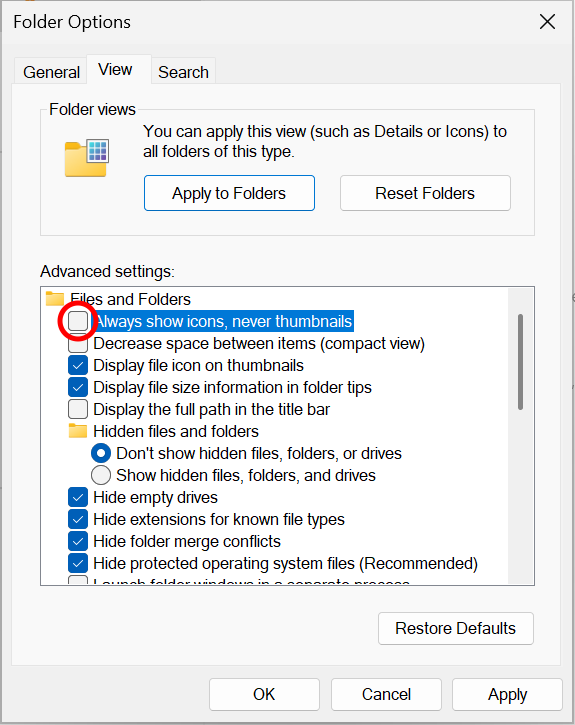
If File Explorer shows only icons
If you’ve enabled previews in BandiView but still see only icons, check these Windows settings.
- In File Explorer, open "Folder Options". On the "View" tab, clear "Always show icons, never thumbnails".
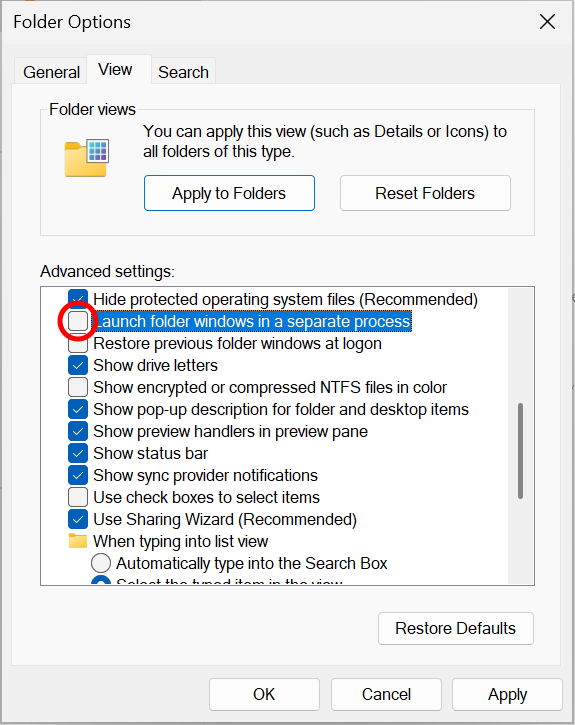
- On the same tab, clear "Launch folder windows in a separate process" if it’s selected.
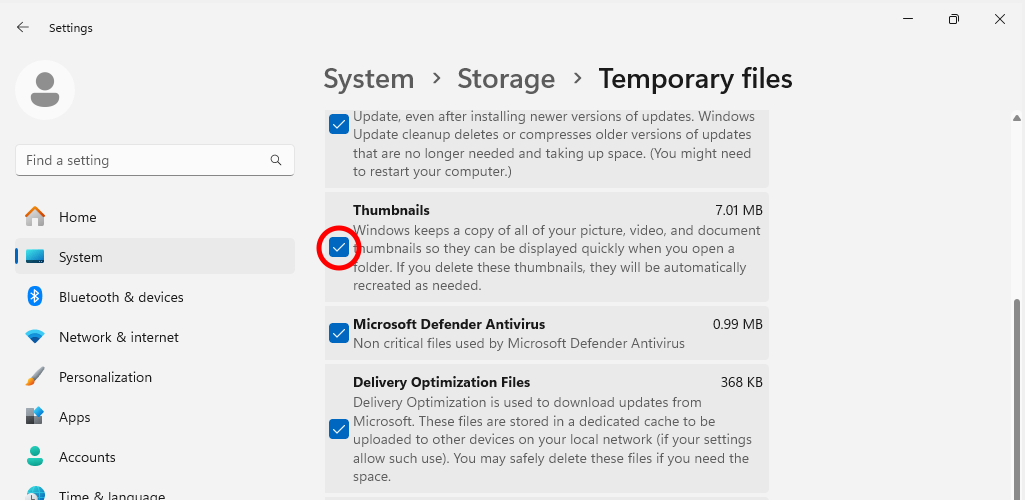
- In Windows "Settings", go to "System" > "Storage" > "Temporary files". Select "Thumbnails" and remove them to clear the thumbnail cache.
If thumbnails still don’t appear
First, check whether the problem affects only certain files.
- Make a copy of a file and check whether the copy has a thumbnail. File Explorer may still be showing a cached thumbnail for the original.
- Online-only files in Google Drive or Dropbox may have no thumbnail. Make the file or folder available offline, then check again.
- If the problem persists across several folders, uninstall BandiView, restart your computer, and reinstall BandiView.